

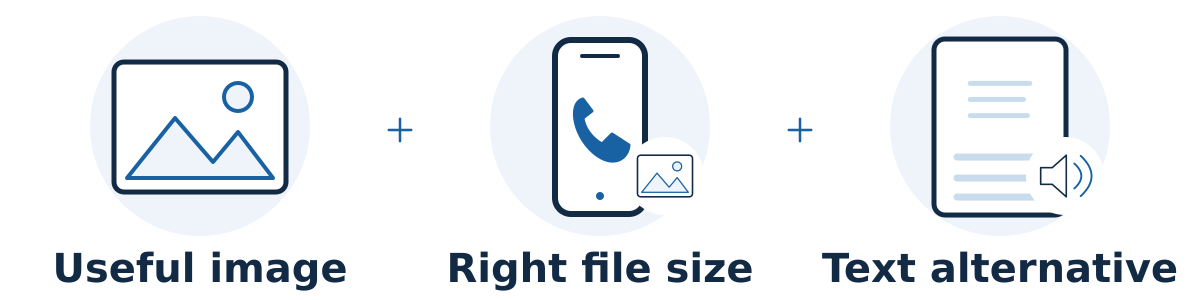
Choose images that help customers understand the page, serve appropriately sized files, and provide text alternatives that match each image's purpose. Useful alt text explains the information or function someone would miss without the image. A decorative image may need an empty alt attribute instead of a description.
Work on image quality, loading, and accessibility together. A tiny file that hides an important product detail is not a good result, and a beautifully detailed photograph can still make a mobile page unnecessarily slow.
Optimize the file and its placement
Choose a useful image. Show the product, service process, finished work, or comparison the customer needs. Confirm you have permission to publish it and avoid presenting stock or generated imagery as evidence of a real completed project.
Resize and compress sensibly. Keep a high-quality original, then create a web version suited to its displayed size. Use responsive image support where available so phones do not download an unnecessarily large desktop image. Compare clarity and file size instead of applying one universal file-size target.
Use a supported format. Select the format that suits the image and website. Google supports common formats including JPEG, PNG, WebP, and AVIF. Its image guidance also recommends short descriptive filenames and placing images near relevant text. A filename is only a small clue about the subject.
Check how the image loads. Ask your developer to reserve its layout space using dimensions or equivalent styling. Lazy loading can help images farther down the page, but the main image visible immediately should not be delayed this way. Google's loading guidance explains this distinction.
Make important images discoverable. Images you want Google to find should use supported HTML image elements and accessible image URLs. Google does not index CSS background images. Ask your developer to check this if meaningful project or product photos exist only as background decoration.
Choose alt text by purpose
Use the W3C alt-text decision tree when you are unsure:
Informative photograph: Describe the relevant visible information briefly. Focus on what matters in this page's context.
Pure decoration: Use an empty alt attribute so assistive technology can skip it. An absent attribute and an intentionally empty one are different; check how your website editor handles this.
Image acting as a link or button: Ensure its accessible text explains the destination or action. An image-only booking link needs a meaningful action label. If nearby text within the same link already supplies that label, avoid redundant repetition. See W3C's functional-image examples.
Chart or complex diagram: Give it a brief identifying alternative and make the important details available as text on the page or in an accessible linked description. W3C explains text alternatives for complex images.
A hypothetical example
A kitchen installer publishes a photo showing a completed oak cabinet installation. Useful alt text might be “Oak base cabinets with black handles and a white countertop.” The nearby caption can supply the project context.
“Best kitchen installers cheap cabinets remodeling city kitchens” would not communicate the picture. A decorative wood-grain divider elsewhere on the page may need an empty alternative. Reusing the photograph does not automatically mean its original alt text suits every new context.
A worked check for a comparison diagram
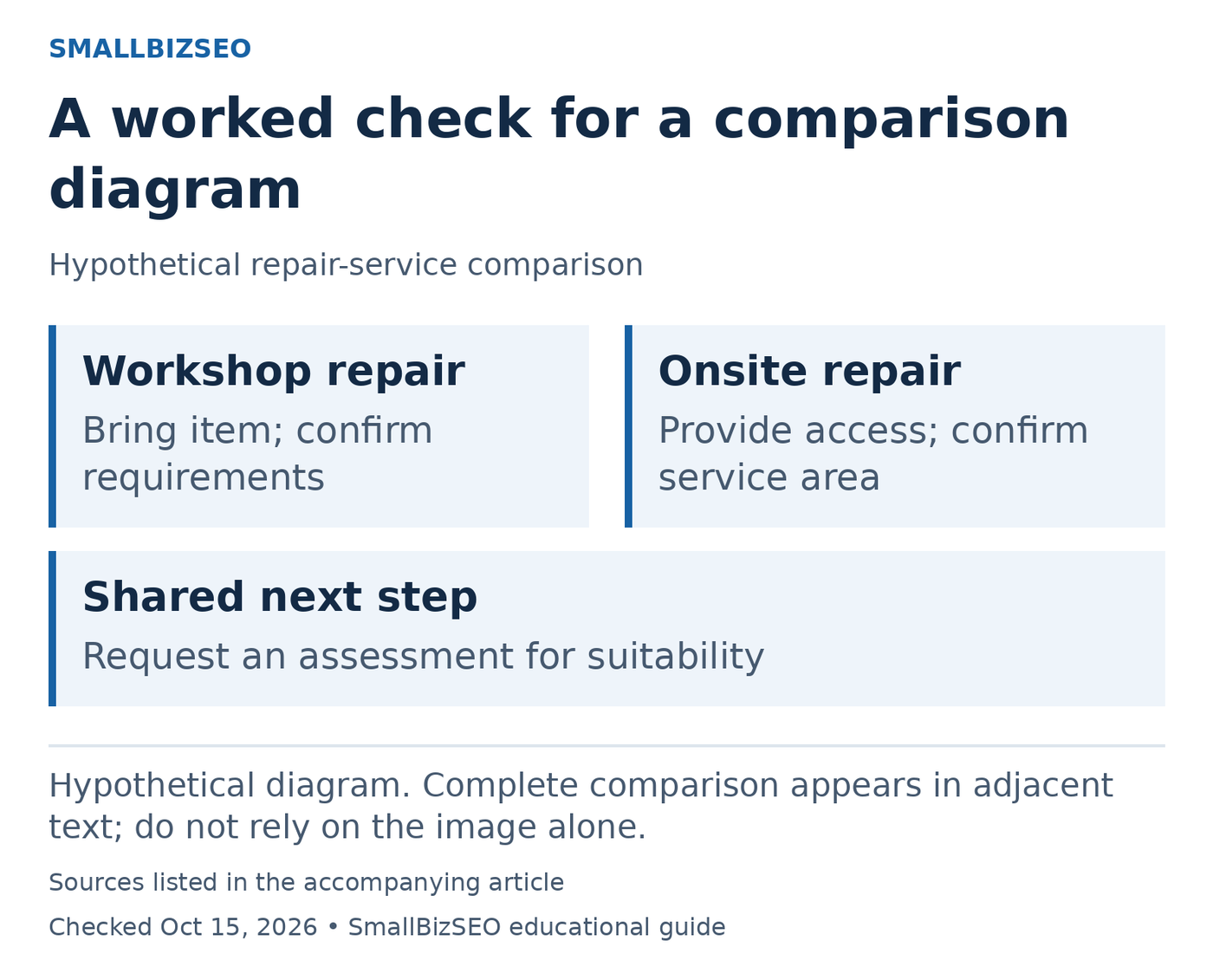
Imagine a service page with a diagram comparing workshop repair and onsite repair. The workshop option requires the customer to bring the item in; the onsite option requires access at the property and is offered only in a defined service area. These are hypothetical details for an accessibility test.
Hypothetical diagram. Complete comparison appears in adjacent text; do not rely on the image alone.
Sources: W3C alt-text decision tree; Google image guidance. Checked October 15, 2026. This visual is an editorial guide, not measured client results.
Short alternative: “Workshop and onsite repair options; comparison explained below.” This identifies the visual without forcing the entire diagram into one long image description. It works only when the promised explanation is actually present and accessible.
Adjacent full explanation: “Workshop repair: bring the item to the workshop; confirm accepted items and appointment requirements. Onsite repair: provide safe access at the property; confirm that your address is within the service area. For either option, request an assessment before assuming the repair is suitable.” This text carries the decision-making differences shown in the visual.
Missing-information test: Hide the image and read the page. Can a customer still identify both options, understand what each requires, and find the next step? If an eligibility warning appears only inside a colored box in the picture, the explanation is incomplete. If arrows or symbols communicate an extra condition, include that meaning in text too.
Check the published page rather than the media library alone. Make sure the alternative is attached to the image, the explanation follows in a sensible reading order, and the mobile image remains legible. The diagram should support the comparison without becoming the only place its important facts exist.
Reference: W3C alt-text decision tree · Google image guidance
Verify the published result
Check the page on a phone for sharpness, cropping, loading delays, and unexpected movement. Inspect the actual alt attributes or ask for an accessibility check; a filename, caption, or media-library title may not be the field your theme displays as alt text.
Confirm that important information and controls remain understandable without seeing the images. Avoid automatically filling every image field with the page's target keyword, and review generated descriptions against what is genuinely visible.
Start with one important service or product page. Improve its largest image and review each image's purpose before working through the rest of the site.